June 25, 2026
Copilot App Canvases — and the Excalidraw One I Built
TL;DR — Canvases are the side-panel surfaces in the GitHub Copilot app where the agent can render rich, task-specific UI — browsers, terminals, markdown editors, and anything else someone writes an extension for. I built Excalidraw Workbench, a canvas that opens .excalidraw files inline so you can generate diagrams with the agent, leave comments on them like you would on a colleague’s drawing, and let the agent patch the scene in response. No more jumping out to the Excalidraw web app to view what the agent just made.
The annoying gap
I’ve had a skill for generating Excalidraw diagrams in my Copilot setup for a while. I honestly don’t remember whether I grabbed it from somewhere public or whether it’s one we use internally at Microsoft — either way, it does a decent job of turning “draw me a sequence diagram of X” into a valid .excalidraw JSON file.
The problem is what happens next. The file gets written, and then I have to leave the Copilot app, open Excalidraw in a browser, drag the file in, look at it, decide what to change, go back to the agent, ask for the change, repeat. It’s not painful exactly — it’s just a lot of context switches for what feels like it should be one tight loop.
That gap is what got me thinking about canvases.
What canvases actually are
If you haven’t poked at this part of the GitHub Copilot app yet, here’s the quick tour.
When you open a session in the app, the right-hand pane has a few things in it by default — a changes view for your workspace, a terminal — but if you hit the + button, you get a list of canvases you can open in this session.
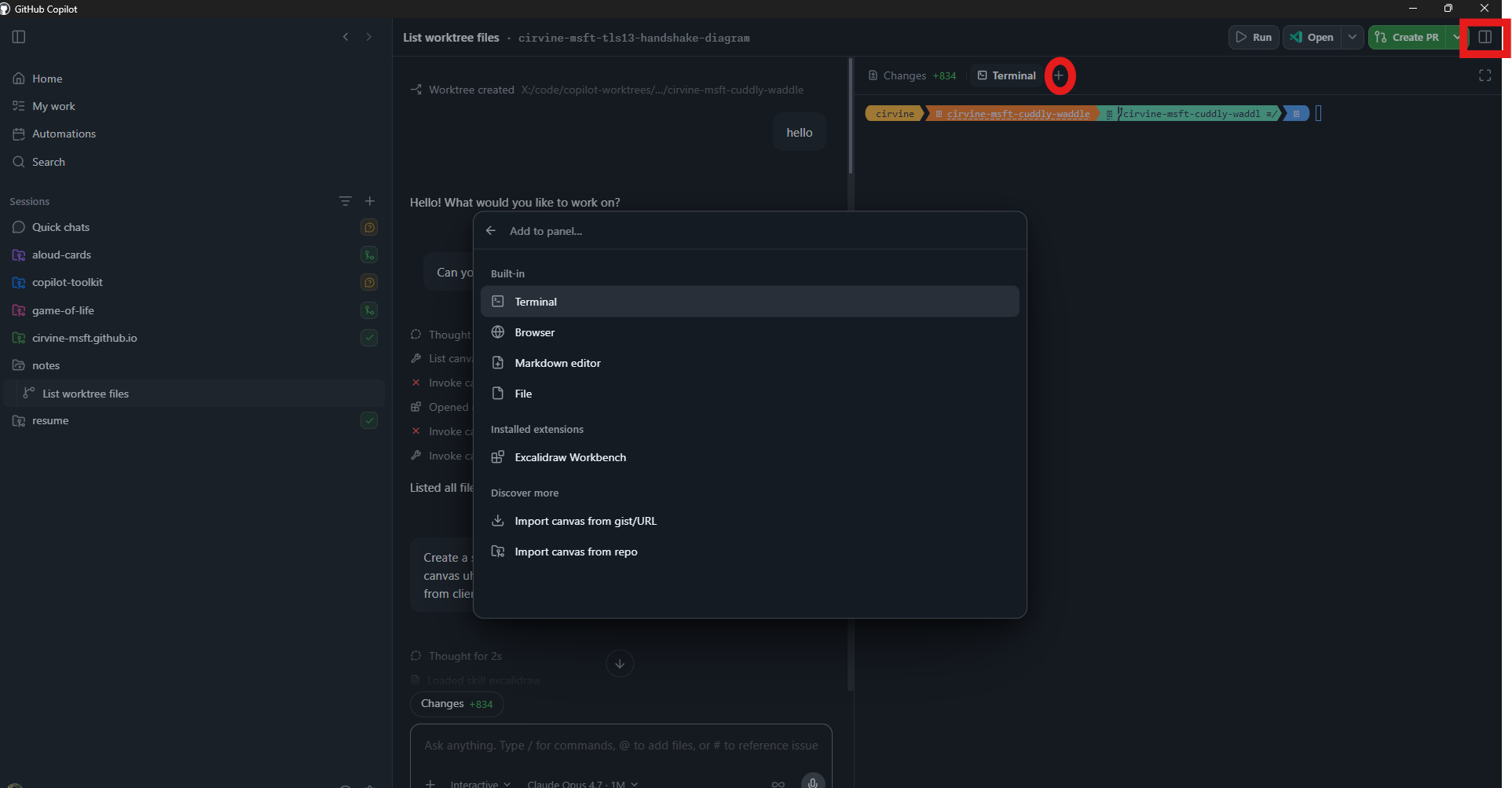
Some are built in (browser, markdown editor, file viewer, terminal). Others come from extensions — including any you’ve installed yourself. They’re not just static viewers, either. The agent can open and drive them. A nice example: in the video I ask, “Can you list all the files in this work tree in a terminal canvas for me?” — and the agent opens a fresh terminal canvas, runs the command in it, and the output streams back into the panel without me touching the keyboard.
That’s the whole pitch in one line: canvases are agent-drivable side-panel surfaces tailored to a task. Once you start thinking that way, it’s pretty easy to start listing canvases your team would love to have.
Installing a third-party canvas
Custom canvases install from a Git URL or a gist. In the app, open the canvas menu, pick Import, choose a scope (use user if you want it available across every workspace), and paste the URL.
For my Excalidraw canvas, the URL is the folder inside my public toolkit repo:
https://github.com/cirvine-MSFT/copilot-toolkit/tree/main/extensions/excalidraw-workbenchThe 1 MB limit and how to get around it
There’s one wrinkle worth knowing about. The built-in import flow has a size cap on the canvas source you’re pulling in — I hit it trying to install Excalidraw Workbench from its repo URL, and the in-app error message put the limit at roughly 1 MB. The extension is over that because the upstream Excalidraw editor and its fonts/locales ship inside the bundle so the whole thing runs offline with no CDN fetches.
The current public docs for canvas extensions don’t call out the exact number, so treat “≈1 MB” as the message I saw rather than a spec — and try the import first; if the dialog rejects it, you’ve hit the same cap I did.
The workaround in the video is to send the import request to an agentic chat instead — hit tab to chat in the import dialog and the same URL gets handed off to an agent that performs the install for you, side-stepping the size cap.
The repo also ships an install script — full instructions are in the README, or you can just point a quick chat at the repo URL and ask it to install, and the agent will read the README and run the script for you.
Heads-up: the size cap is a today-of-recording thing, not a permanent rule. By the time you read this it may be gone or different — try the built-in import first and fall back to the script if it bounces.
The demo: a TLS 1.3 sequence diagram
Once the canvas is installed, the workflow is one prompt away — I ask the agent for a TLS 1.3 handshake sequence diagram and it writes the .excalidraw file and opens it directly in the workbench panel.
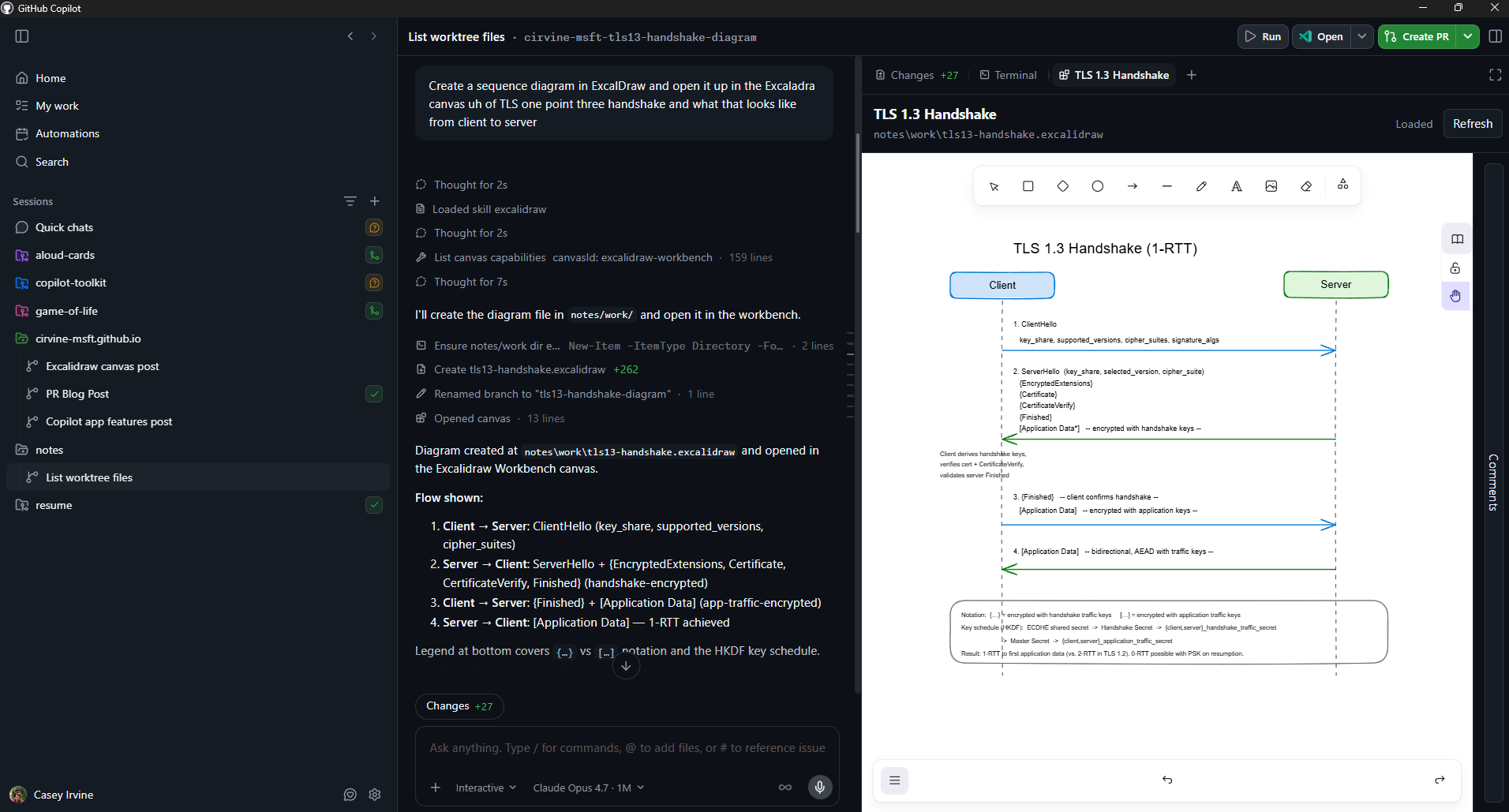
From here I have the full Excalidraw editor, so I can drag and edit things by hand. The part that makes this feel different from “Excalidraw in a side panel,” though, is that I can drop comments on any element and the agent picks them up — answers questions in the thread, patches the scene, or both. Useful for tweaking diagrams I’m building, asking the agent to explain something in a diagram a colleague made, or just having an agentic back-and-forth without leaving the drawing.
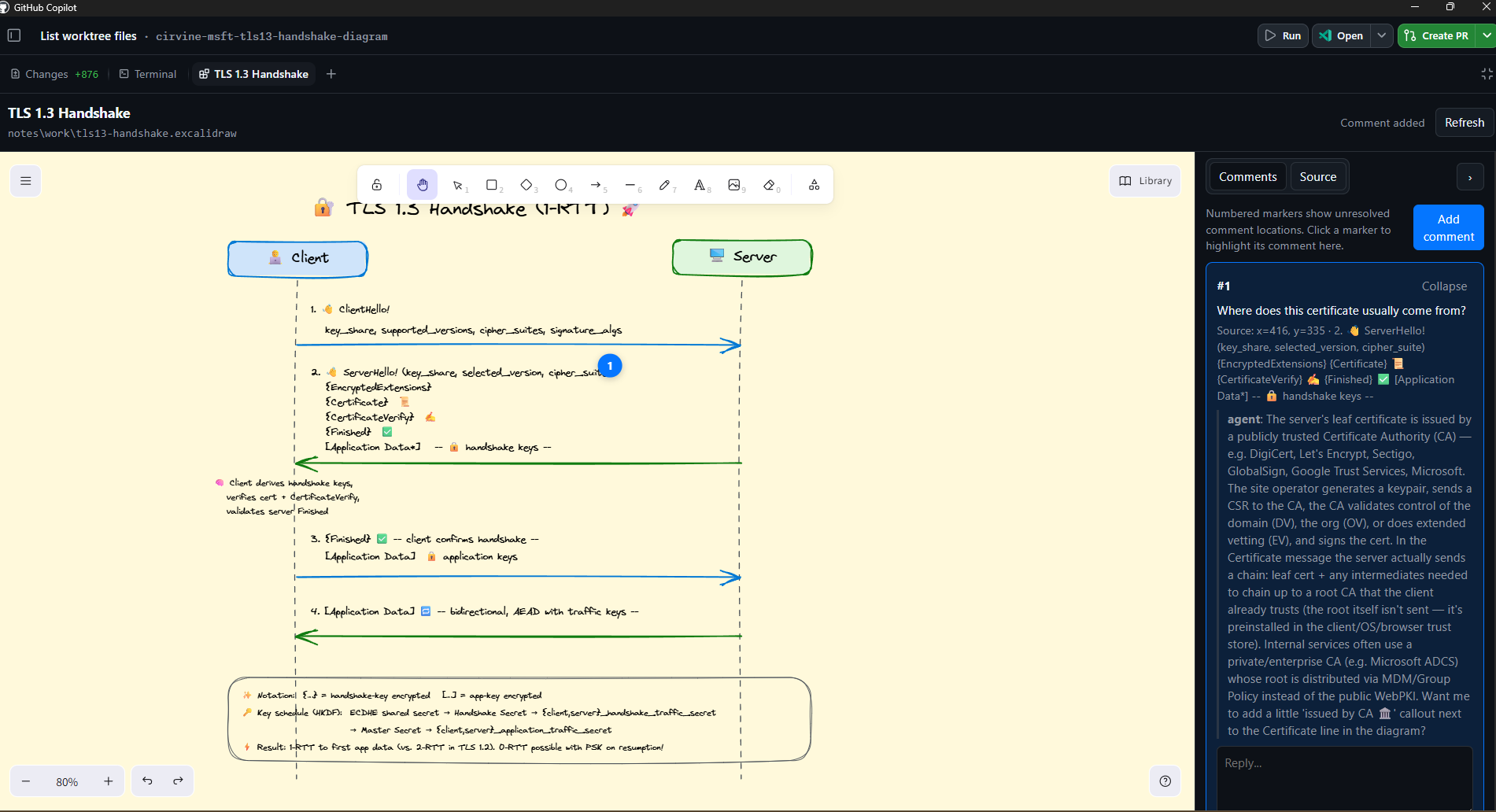
That’s really the point of canvases — they pull agentic interactions into the view where the work actually lives, with the context of your session already attached. Drawings are one example. The same shape works just as well for spec docs, dashboards, query results, or whatever artifact your team spends its day staring at.
Why this pattern is worth stealing
If you’re thinking about authoring a canvas of your own — for your team, your repo, your weird internal tool — here’s the design rule I’d encourage you to copy:
Don’t just render content. Make the canvas a place where you and the agent can collaborate on that content.
For Excalidraw that meant:
- The agent can patch element fields (
x,y,width,height,text, colors) without rewriting the whole file. - Comments are durable — they live in a sidecar
.excalidraw.comments.jsonfile next to the drawing, so they survive across sessions and travel with the repo if you commit them. - The agent can capture an SVG or PNG snapshot of the live canvas so it can actually see what the diagram looks like before suggesting changes.
- Every comment thread is wired back to the Copilot session as untrusted input, so the agent treats drawing contents as context, not instructions.
You can browse the action list in the extension README — get_loaded_file, list_comments, reply_to_comment, resolve_comment, apply_element_patch, save_source, refresh_diagram, capture_snapshot. You almost never call those by name; you just describe the outcome and Copilot picks the action.
Try it (and steal the pattern)
A couple things to try if you want to play with canvases:
- If you live in Excalidraw at all — install the workbench, generate a diagram with the agent, and try driving the next edit purely through a comment on the drawing. Notice how much of the back-and-forth disappears. If you hit something rough or have ideas for it, please file an issue on the toolkit repo — feedback on the Excalidraw canvas is very welcome.
- If you don’t care about Excalidraw — open up the canvas menu in the Copilot app and ask yourself what would feel valuable as a side-panel surface for your work. A query results viewer for your team’s DB? An incident timeline? A schema diff browser? The platform’s there; the bar to ship one is genuinely low. The official “Working with canvas extensions” docs are the right place to start — they cover the
/create-canvasskill, project vs. user scope, and how a canvas extension is structured.
Drop a comment on the video or find me on LinkedIn if you build one — I’d love to see what people come up with.
Happy coding.